

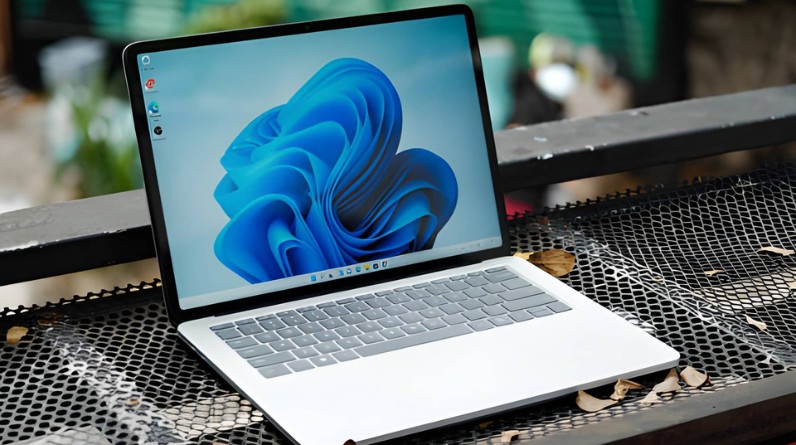

Your Windows 11 PC didn’t start out slow — it got there gradually. Apps piled up, background processes multiplied, storage filled in, and now everything feels like it’s wading through mud. The usual advice? “Disable startup apps” or “clean temporary files.” Helpful, but incomplete.
This guide takes a different approach. Instead of throwing random tips at the wall, you’ll learn how to diagnose what’s actually slowing your PC and apply fixes that make a noticeable, lasting difference.
- Identify the real cause of slow performance
- Apply quick fixes that work in minutes
- Use high-impact optimizations for long-term speed
- Understand advanced tweaks (and when to use them)
- Decide if you need a hardware upgrade
- Avoid common mistakes that make things worse
- Maintain performance over time
Why Your Windows 11 PC Is Slow (Root Cause Breakdown)
The 4 Core Bottlenecks
Every slow PC problem traces back to one or more of these:
- CPU: Overloaded by heavy apps or background tasks
- RAM: Not enough memory → constant slowdowns
- Disk: Full or slow storage causes lag
- Background processes: Too many apps running silently
Symptoms → Causes
| Symptom | Likely Cause |
|---|---|
| Slow startup | Too many startup apps |
| Lag while multitasking | Low RAM or heavy background apps |
| Freezing or stuttering | Disk usage or CPU spikes |
| General sluggishness | Clutter, outdated system, or malware |
How to Diagnose Using Task Manager
Press Ctrl + Shift + Esc and check:
- CPU usage above 80% consistently → CPU bottleneck
- Memory near 100% → RAM issue
- Disk at 100% → storage bottleneck
This simple check prevents guesswork and points you toward the right fix rather than cycling through solutions that don’t apply to your situation.
Quick Fixes (Biggest Speed Boost in Under 5 Minutes)
Disable Startup Apps
Startup apps quietly consume your boot time — and most of them don’t need to launch automatically. Apps like Spotify, Teams, Discord, and Adobe updaters are common culprits.
Go to Task Manager → Startup apps tab → right-click and Disable anything non-essential.
Why it works: Reduces system load immediately after boot, which means lower idle RAM and a faster desktop reach.
Turn On Storage Sense
Temporary files and cached data accumulate quietly over time — often several gigabytes worth.
Enable Storage Sense in Settings → System → Storage. You can also run Disk Cleanup manually (search it in the Start menu) for a one-time deep clean that includes old Windows Update files.
Why it works: Frees space and reduces the disk strain that causes that frustrating 100% disk usage spike.
Close Background Apps and Browser Extensions
Browsers and apps consume RAM even when idle — and browser extensions are a frequently overlooked culprit. A bloated extension list can add hundreds of megabytes of overhead on top of your regular tab usage.
Close unused tabs and programs, and audit your browser extensions. Remove any you haven’t actively used in the last month.
Example: 20 Chrome tabs combined with a handful of active extensions can easily consume 4–6 GB of RAM on their own.
Restart Your PC Properly
A full restart — not Sleep, not Hibernate — clears memory and kills lingering processes that silently accumulate over days of use.
Insight: Sleep mode preserves your session but doesn’t flush RAM or reset runaway processes. If your PC feels sluggish after days of uptime, a restart is often the fastest fix available.
High-Impact Fixes That Actually Make Windows 11 Faster
Uninstall Bloatware
Many apps register background services the moment they’re installed — services that run silently whether you use the app or not.
Remove unnecessary programs from Settings → Apps → Installed apps, then sort by size to find the biggest offenders quickly.
Why it works: Fewer background processes means less CPU and RAM usage at all times, not just at boot.
Switch to Best Performance Mode
Go to Settings → System → Power & Battery → Power Mode → Best Performance.
Why it works: Windows defaults to a balanced mode that throttles CPU performance to save power. Best Performance mode lifts that ceiling — particularly noticeable on laptops that run in a constrained power state by default.
Update Windows and Drivers
Outdated systems often run inefficiently in ways that aren’t obvious from the outside.
Insight: Graphics drivers (NVIDIA, AMD, Intel) have the most direct impact on visual responsiveness and gaming. Storage drivers matter next — an outdated NVMe driver can leave your fast drive performing like a much slower one. Don’t rely solely on Windows Update for these; check manufacturer websites directly for the latest versions.
Scan for Malware
Malware can silently consume resources — and it’s more common than people assume, even on systems that feel “fine.”
Run a full system scan using Windows Security (built in) or a trusted second-opinion scanner.
Why it matters: Even lightweight malware running in the background can saturate CPU usage, spike disk activity, and cause the kind of general sluggishness that’s easy to misattribute to other causes.
Advanced Optimization (For Maximum Performance Gains)
Adjust Visual Effects
Windows 11’s interface leans heavily on animations, shadows, and transparency effects — particularly the Acrylic and Mica blur effects on the taskbar and Start menu. These consume real GPU and CPU resources.
Disable animations and transparency via Start → search “Adjust the appearance and performance of Windows” → Visual Effects tab → Adjust for best performance.
Trade-off: Slightly less visual polish, but noticeably smoother day-to-day performance — especially on mid-range and older hardware.
Disable Search Indexing (Selective Use)
Windows Search indexing runs in the background to make file searches instant. The trade-off is periodic disk activity that can interfere with other tasks.
Turn off indexing for folders you rarely search — not the entire system.
Insight: Full disabling isn’t always a good call — you’ll feel the slowdown every time you search. Targeting specific folders (like large media libraries) gives you the disk relief without the daily friction.
Optimize Background Services
Some Windows services run continuously without providing real benefit to average users — things like Connected User Experiences and Telemetry, or Windows Search if you’ve already disabled indexing.
Use Task Manager’s Services tab or Resource Monitor to identify what’s consistently consuming resources before changing anything.
Use Resource Monitor
Task Manager gives you a snapshot. Resource Monitor gives you a story — showing exactly which process is hammering your disk, holding memory, or blocking network activity.
Example: A process you’ve never heard of causing repeated disk spikes will show up clearly here, letting you investigate before disabling anything blindly.
Enable Efficiency Mode
Right-click a process in Task Manager and select Efficiency Mode to throttle its resource priority without closing it.
Why it works: Windows deprioritizes that process so your foreground apps get more CPU time. Useful for background updaters or indexing tools that don’t need to run at full speed.
Windows 11 Features That Can Slow Down Your PC
Widgets and Notifications
The Widgets panel runs background processes to fetch news, weather, and other feed content — even when you never open it. If you don’t use Widgets, disabling them via Settings → Personalization → Taskbar removes this overhead entirely.
Cloud Sync (e.g., File Sync Services)
Continuous syncing can create sustained disk and network activity, which degrades performance on lower-spec systems — especially if you’re syncing large files or folders. If you’re evaluating which cloud storage service fits your needs, it’s worth factoring in how aggressively each one syncs in the background.
Consider setting sync to manual or scheduling it during off-hours if it’s affecting your daily workflow.
Game Mode
Useful when gaming, but not always beneficial for general productivity use.
Insight: Game Mode reserves CPU and GPU resources for game processes — which can actually hurt performance in creative or productivity workloads. Test it in both states to see which works better for your typical usage.
Hardware Upgrades — When Optimization Isn’t Enough
RAM Upgrade
- Minimum (2026): 16GB
- Recommended: 32GB+
If Task Manager shows you consistently hitting 90%+ memory usage during normal work, software optimization can only go so far — more RAM is the direct fix.
SSD vs HDD vs NVMe
| Type | Speed | Impact |
|---|---|---|
| HDD | Slow | Major bottleneck |
| SSD | Fast | Big improvement |
| NVMe | Very fast | Maximum performance |
Storage Space Matters
Keep at least 15–20% of your drive free. When a drive fills past that threshold, Windows has less room to write temp files and manage virtual memory — both of which contribute to the 100% disk usage problem many users struggle to explain.
When to Upgrade Your PC
If your system still struggles after a full round of optimization, software fixes have reached their ceiling. Hardware limitations — particularly on machines 7+ years old running Windows 11 — are the likely cause, and no amount of tweaking will change that.
Biggest Performance Gains Ranked
High Impact
- Upgrade to SSD/NVMe
- Add more RAM
- Disable startup apps
Medium Impact
- Uninstall apps
- Adjust power settings
- Update system and drivers
Low Impact
- Visual tweaks
- Minor background settings
Common Mistakes That Make Your PC Slower
- Using registry cleaners or “PC booster” tools
- Disabling important system services blindly
- Ignoring storage limits
- Running too many apps simultaneously
- Overlooking bloated browser extensions as a RAM drain
Insight: Many “optimization tools” generate more problems than they solve — corrupted registry entries, broken system components, and false performance metrics. Windows has the diagnostics you need built in. Use them.
Maintenance Checklist (Keep Your PC Fast)
Weekly
- Restart your PC
- Close unused apps
Monthly
- Clean temporary files
- Check for updates
- Scan for malware
Ongoing
- Monitor system performance
- Avoid unnecessary installations
FAQs
Why does Windows 11 slow down over time?
Accumulated files, background processes, auto-starting apps, and software clutter gradually eat into available resources. It’s not a sudden failure — it’s a slow accumulation that compounds over months of use.
What is the fastest way to speed up a PC?
Disable high-impact startup apps, free up storage space, and close unnecessary background programs. These three steps alone resolve the majority of slow Windows 11 cases.
Does adding RAM help?
Yes — especially if Task Manager consistently shows your memory usage near or above 90%. More RAM won’t speed up a CPU-bound system, but it’s the direct fix for a memory-constrained one.
Should I disable all startup apps?
No. Keep essentials like antivirus software and audio drivers. Disable non-essential apps — things like game launchers, media players, and cloud backup tools that don’t need to load before you’ve even reached the desktop.
Is Windows 11 slower than Windows 10?
Not inherently — in fact, the same hardware generally runs Windows 11 at comparable or better speed than Windows 10. Performance depends far more on hardware spec and configuration than the OS itself. Worth noting: Windows 10 reached end of support in October 2025, so Windows 11 is now the baseline for security and performance updates.
Conclusion
Speeding up a slow Windows 11 PC isn’t about applying every tip you find — it’s about applying the right fixes for your specific problem.
Start with quick wins, move to high-impact changes, and only then consider advanced tweaks or upgrades. In most cases, a well-optimized system can feel dramatically faster without spending a cent.
If your PC still struggles after all this, that’s your signal — not to tweak more — but to upgrade smarter.